
How to set up Sharing SMS: step-by-step instructions
- Buy SIM card(s) from local mobile operators with a minimum prepaid package.
- Insert the SIM cards into Android devices with Android version 6 and above. Make sure the SIM registers on the network. A factory reset is not required, but if you are using second-hand phones, we recommend resetting them to factory settings before using them with the app. Avoid Huawei, Honor and budget no-name Chinese phones. Read our warning about infected smartphones.
iPhone is not supported: iOS does not let apps read incoming SMS. - Create an account on the site.
- Download the app (APK file) from sharingsms.com/apk or from the link in your Personal Account.
- Install the Sharing SMS app on your devices and be sure to grant all the necessary permissions for the app to work correctly. See the list of required permissions below. How to install an APK file.
- On first launch, you will be prompted to make Sharing SMS the default SMS app. On older versions of Android this is required to receive SMS, so we recommend doing it. You can also do this later in the app settings.
- Add SIM cards that have never been used for registration on services by tapping the Add (+) button. Number verification is done automatically, with no need to enter a code from an SMS.
Please note! We strongly discourage using contract-based SIM cards or numbers linked to personal ID/passport data for rental purposes.
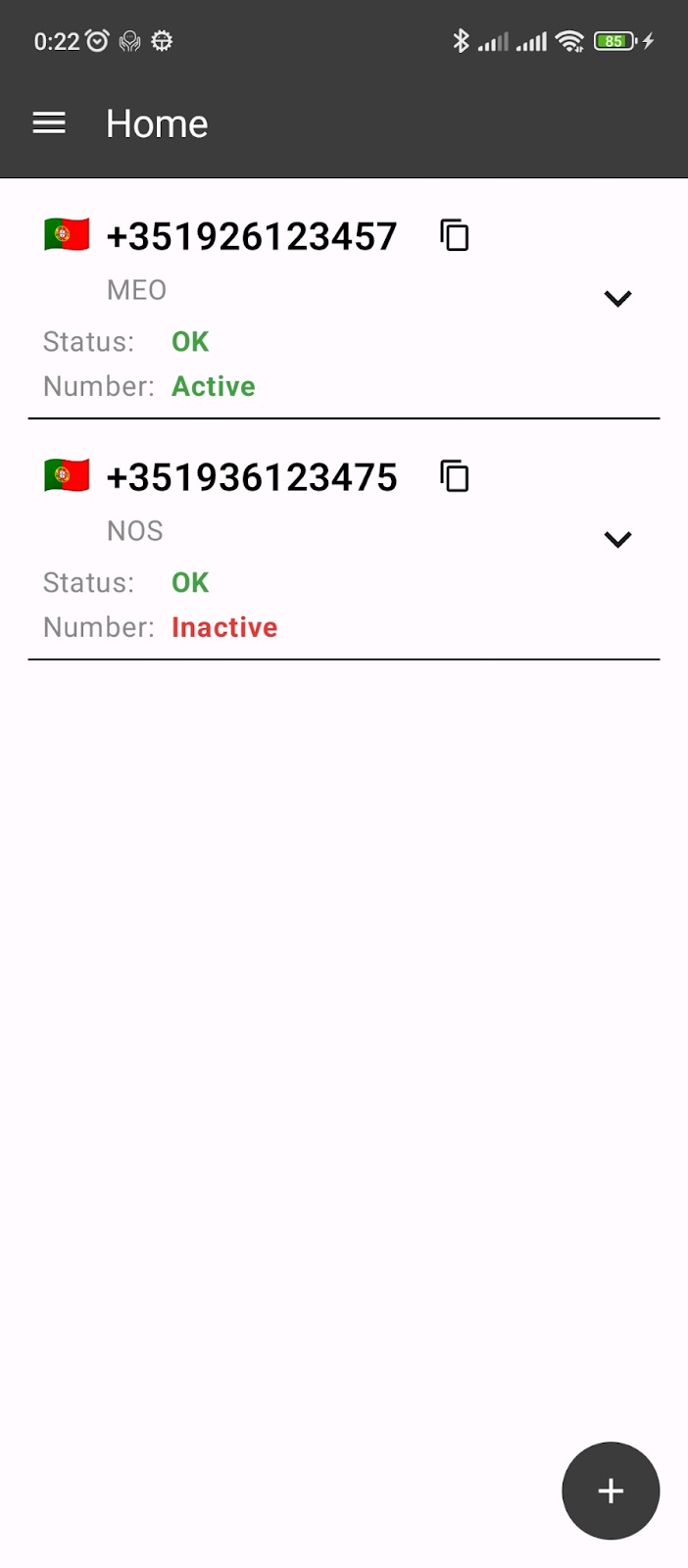
The added numbers can have the following statuses: Active or Inactive.
Inactive status means that the number is available for rent but not yet rented.
Active status means that the number has been rented and has already started earning for you.
Please note! After adding a number, the “Number Stability Assessment” mode is activated — the platform monitors the stability of your number for a certain period of time, usually ten days. If there are no availability problems during this period, your number will become available for rent. Once your number is available for rent, you can start earning.
- Turn off the power saving or battery optimization mode on your device (because of this mode, Android may restrict the app’s background activity or unload it from memory entirely).
To do this, in the Sharing SMS settings, tap IGNORE BATTERY OPTIMIZATION and grant the app the necessary permission.
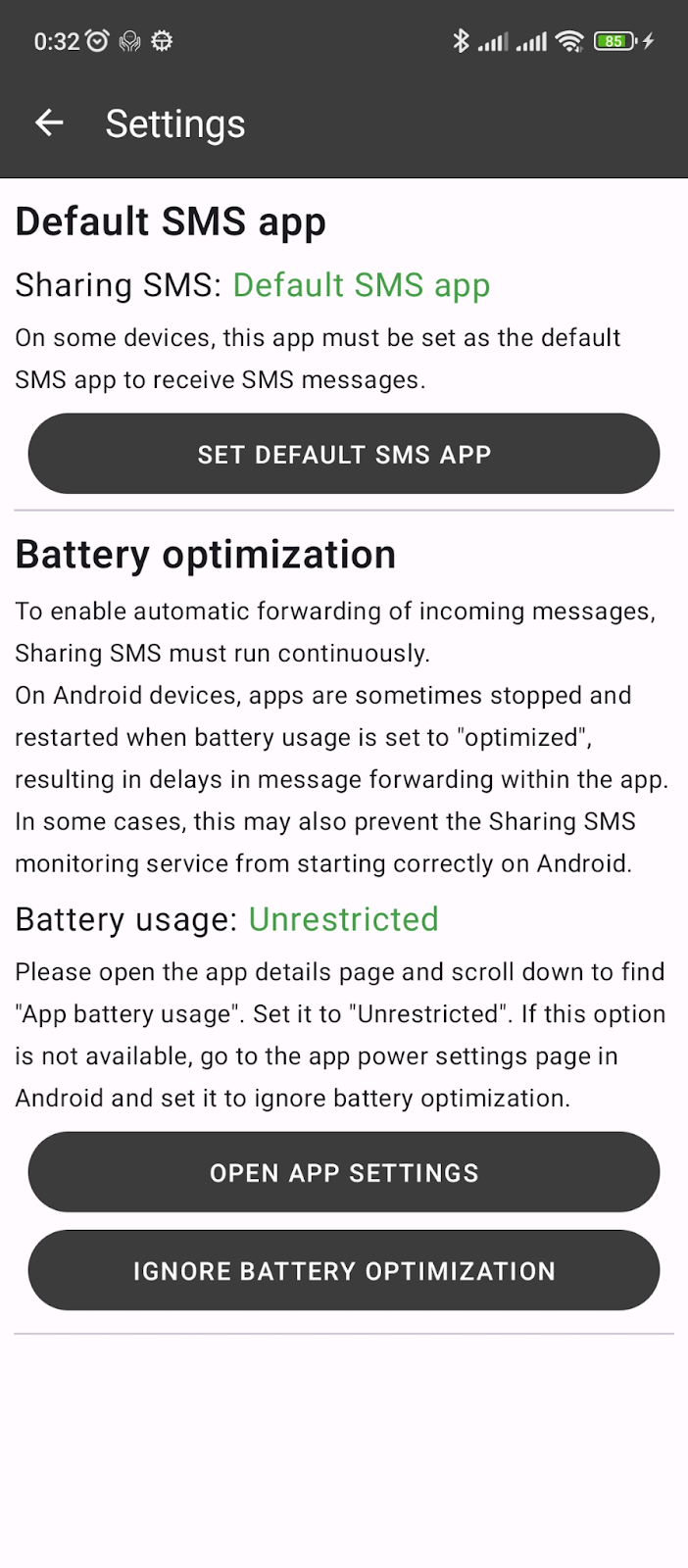
Next, in the app settings, tap OPEN APP SETTINGS. On the About screen, look for Activity Control, Battery Usage or Battery. Allow the app to run in the background and turn off any launch restrictions meant to save power.
- As an additional step to improve stability, you can lock the app in memory.
To do this, open recent apps, press and hold the app window until the buttons appear, then tap the lock button.
Depending on the manufacturer, the steps may differ, for example:
- Xiaomi: open Security > Settings (gear in the top corner) > Acceleration > Pinned apps > select from the list.
- Huawei: open recent apps > swipe down on the app window.
- Oppo, Realme, OnePlus: open recent apps > menu above the app window > Lock.
- Make sure in Android settings that power saving mode is turned off. And battery optimization is disabled for Sharing SMS. You can use the existing phone settings search to quickly access these settings.
- Check in your device settings that the network connection (Wi-Fi or mobile data) stays on in sleep mode, when the screen is off.
- Add your e-mail address to your profile in your Personal Account. We strongly recommend this: we use e-mail to inform you about status changes of your numbers and about incidents, when the app loses connection with the server or a number becomes unavailable. You can also receive incident notifications in Telegram.
- Add your USDT/USDC wallet address in your Personal Account for payouts.
Required permissions
Important: to install the application you need to allow installation of applications from “unknown sources” in Android settings. See the APK installation guide.
A detailed description of the permissions:
- Phone (make and manage calls) — to read the phone and SIM status
- Location — to get information from cell towers and Wi-Fi access points
- SMS (send and view SMS messages) — to confirm numbers and forward SMS
- Notifications — to show the status of your numbers in the notification bar
Switch off operator and promotional messages
To avoid unnecessary distractions on a number you’ve added, we recommend switching off the operator’s own service and promotional SMS on it. There are two common ways to do this, depending on your carrier:
- Through the operator’s mobile app — most carriers let you manage or disable promotional and service notifications from their official app or self-service portal.
- By sending a code to a short number — many operators let you opt out by sending a specific SMS code to a short number (the code is different for each operator; check your carrier’s website or support line).
Screenshots
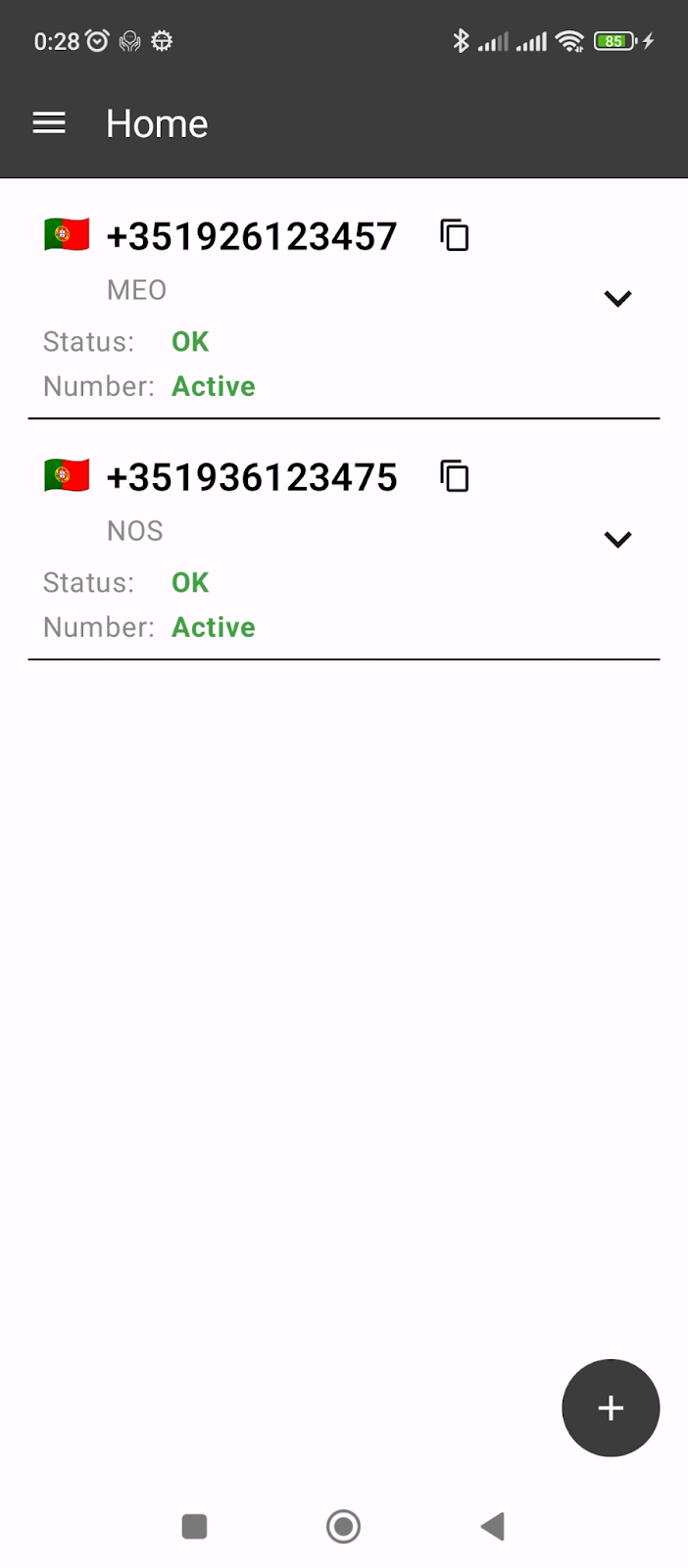
The numbers are rented, have the Active status and a stable connection to the server.
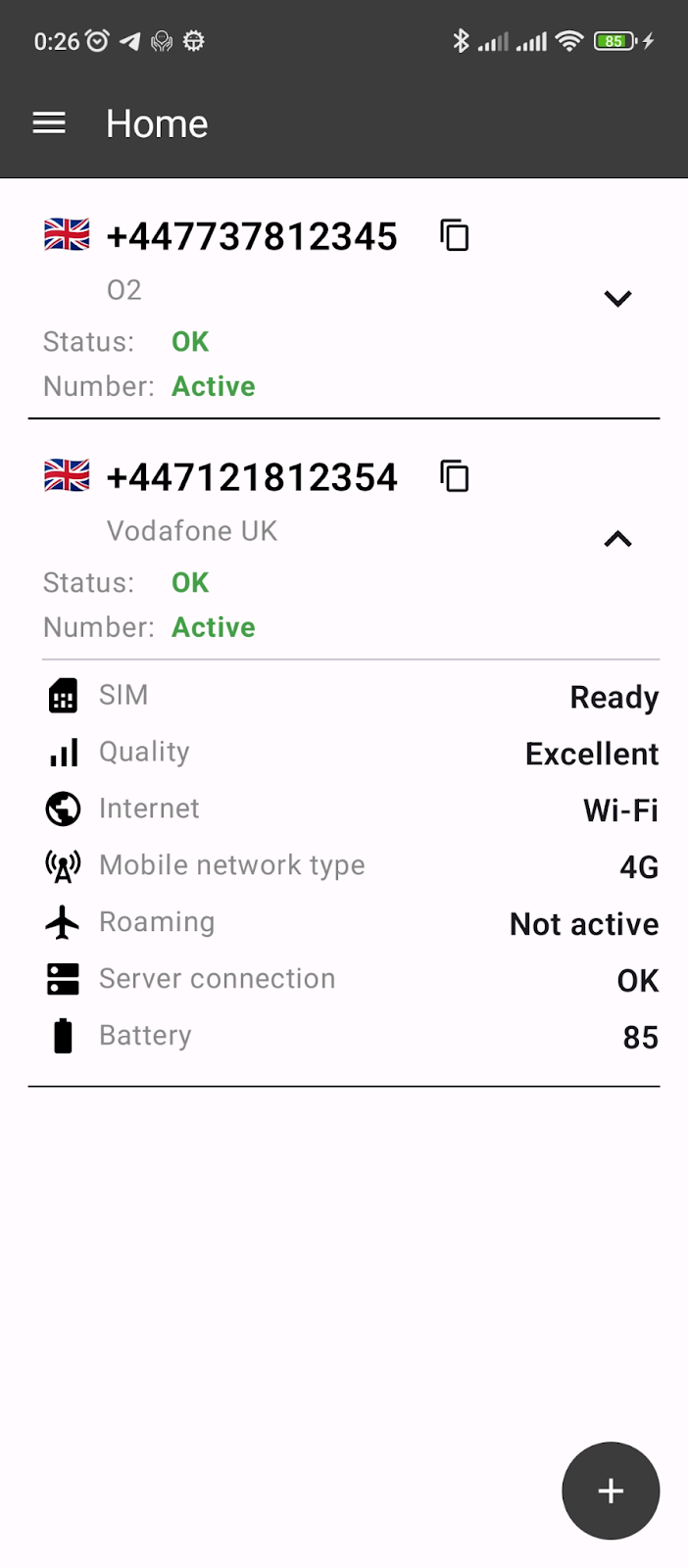
Detailed information about a number (SIM Info) that the app exchanges with the server.
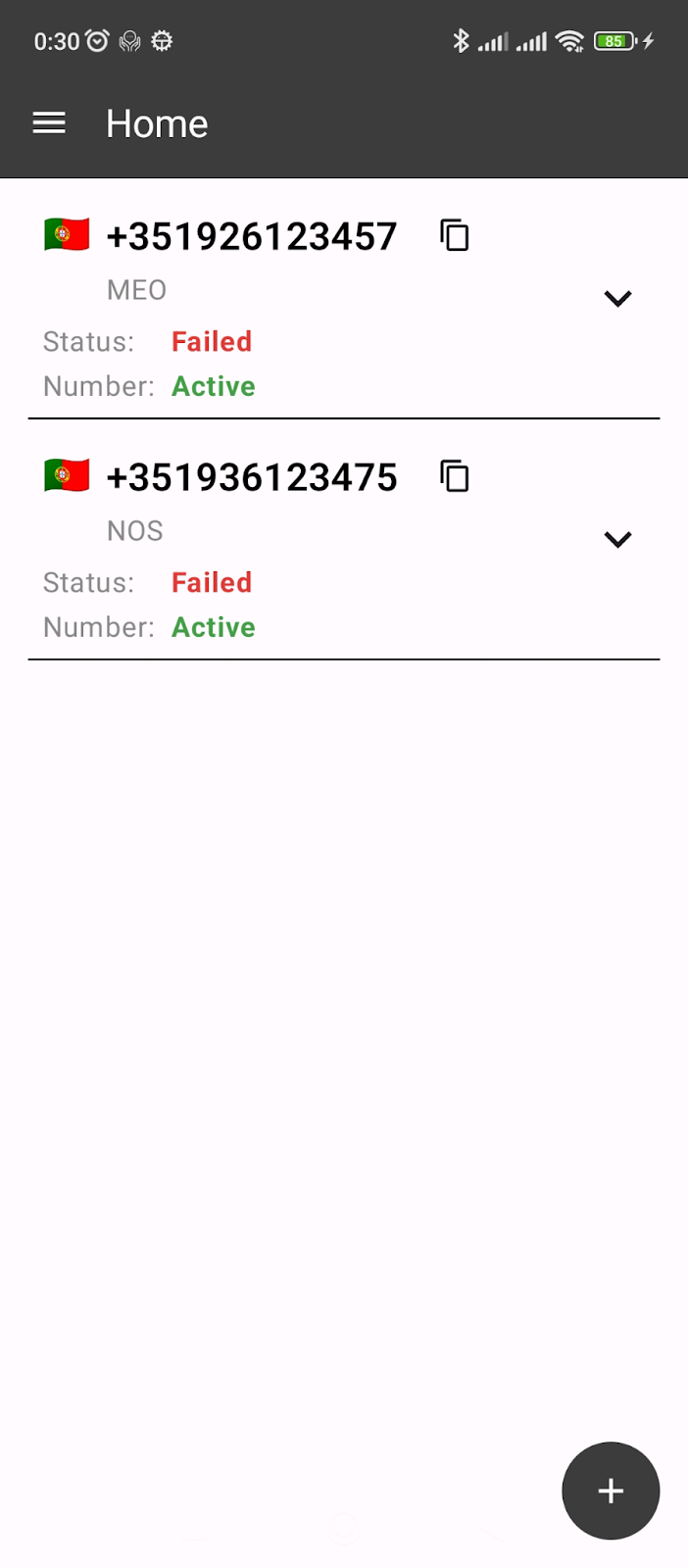
If there is an incident with the server connection or the SIM card is unavailable, the number shows the Failed status.
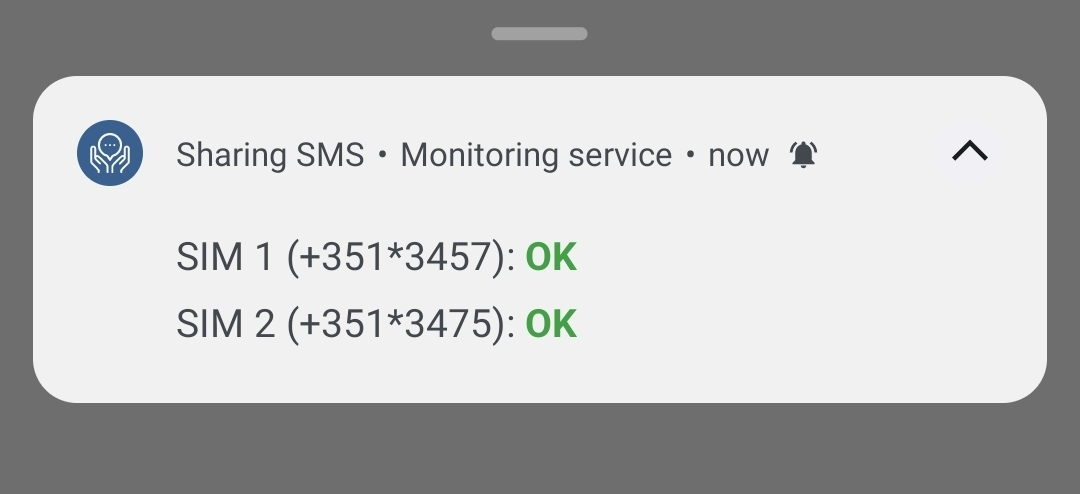
The notification panel shows the app’s notification with the status of your numbers.
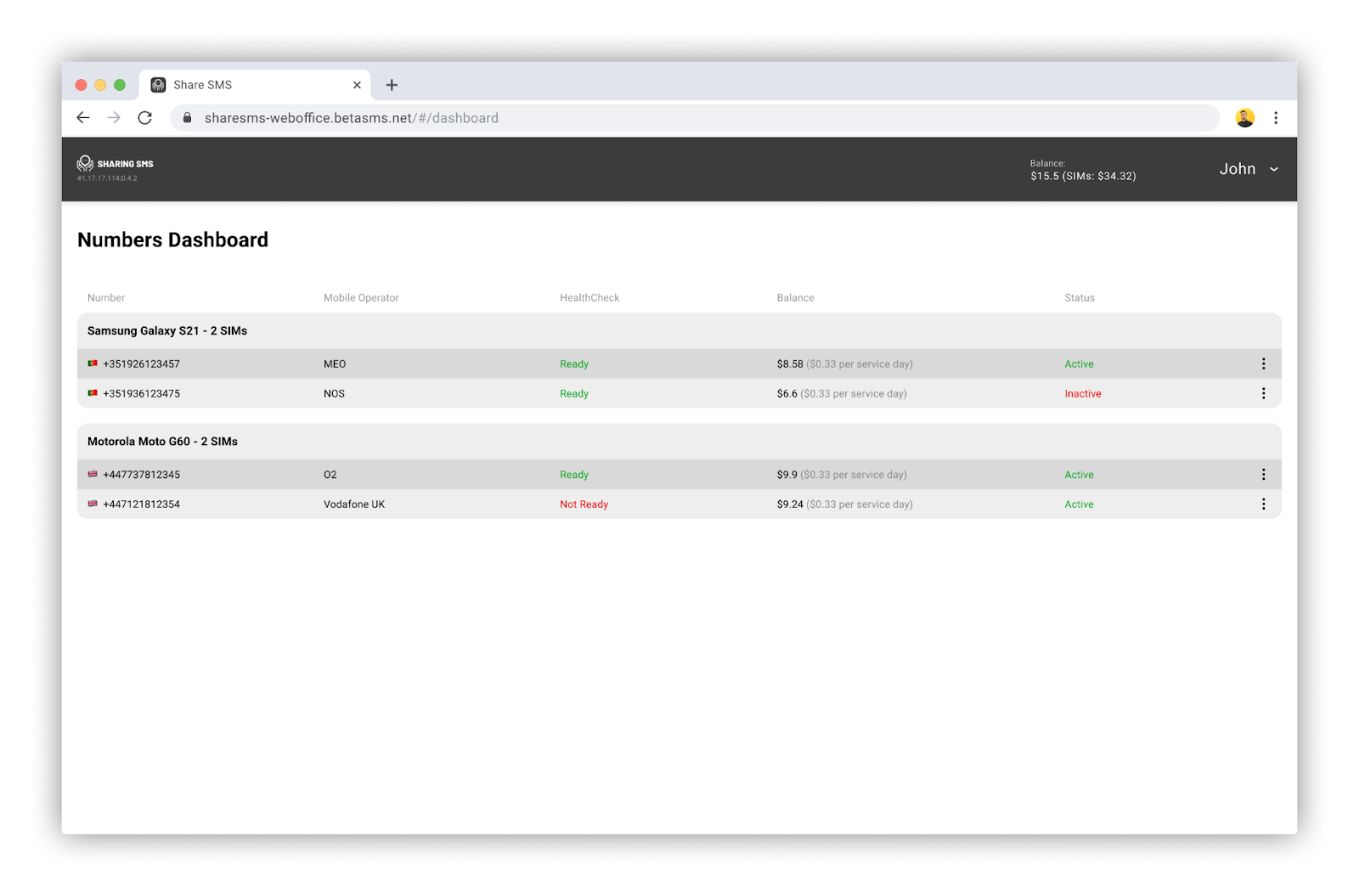
Personal Account.
 English
  Українська
  Français
  Español
  简体中文
简体中文  العربية
  Bahasa Indonesia
  Türkçe
  Italiano
  Tiếng Việt
  Deutsch
  Русский