
Steps to install a third-party APK file on your Android device
- 1. Enable unknown sources
- 2. Download the APK file
- 3. Find the APK file
- 4. Start the installation
- 5. Grant permissions
- 6. Install the app
- 7. (Optional) Disable unknown sources
1. Enable unknown sources
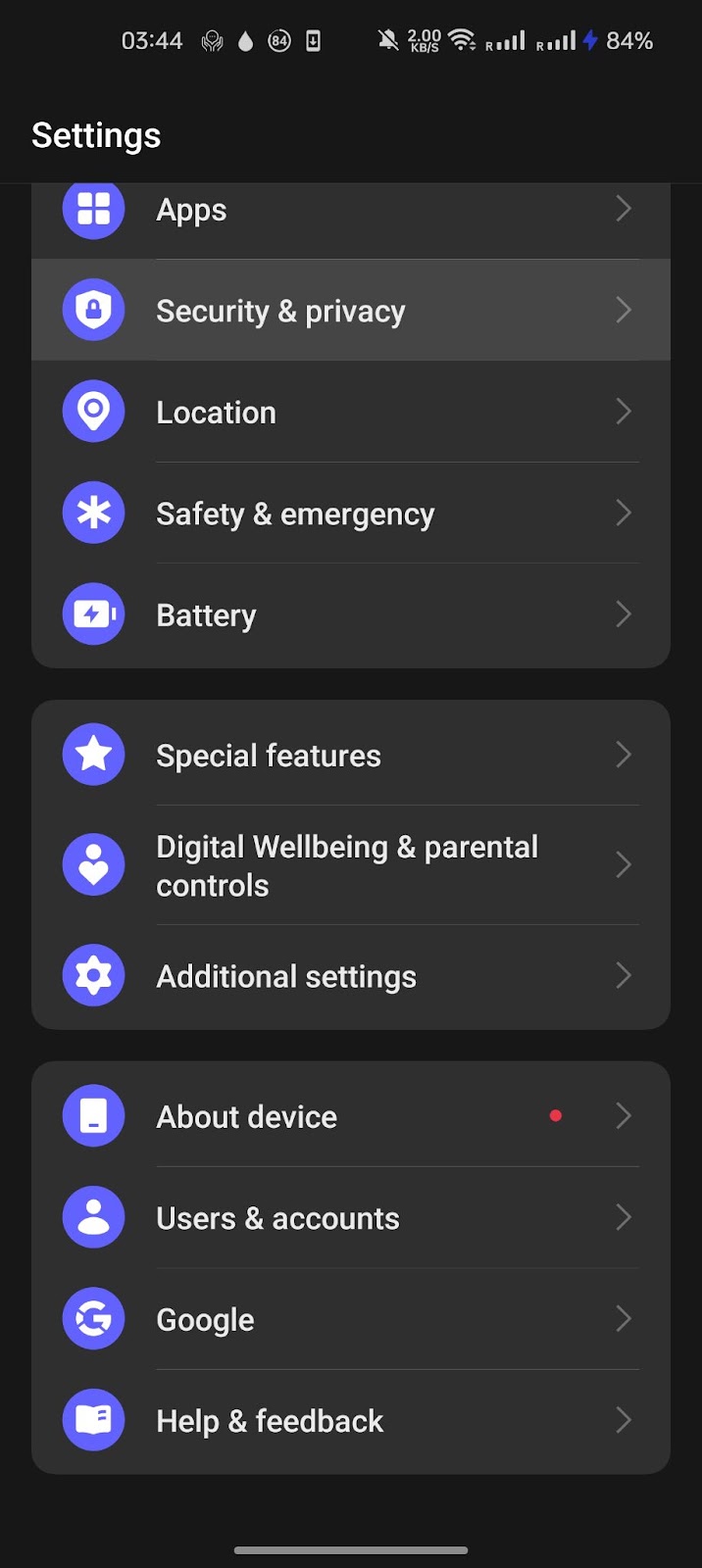
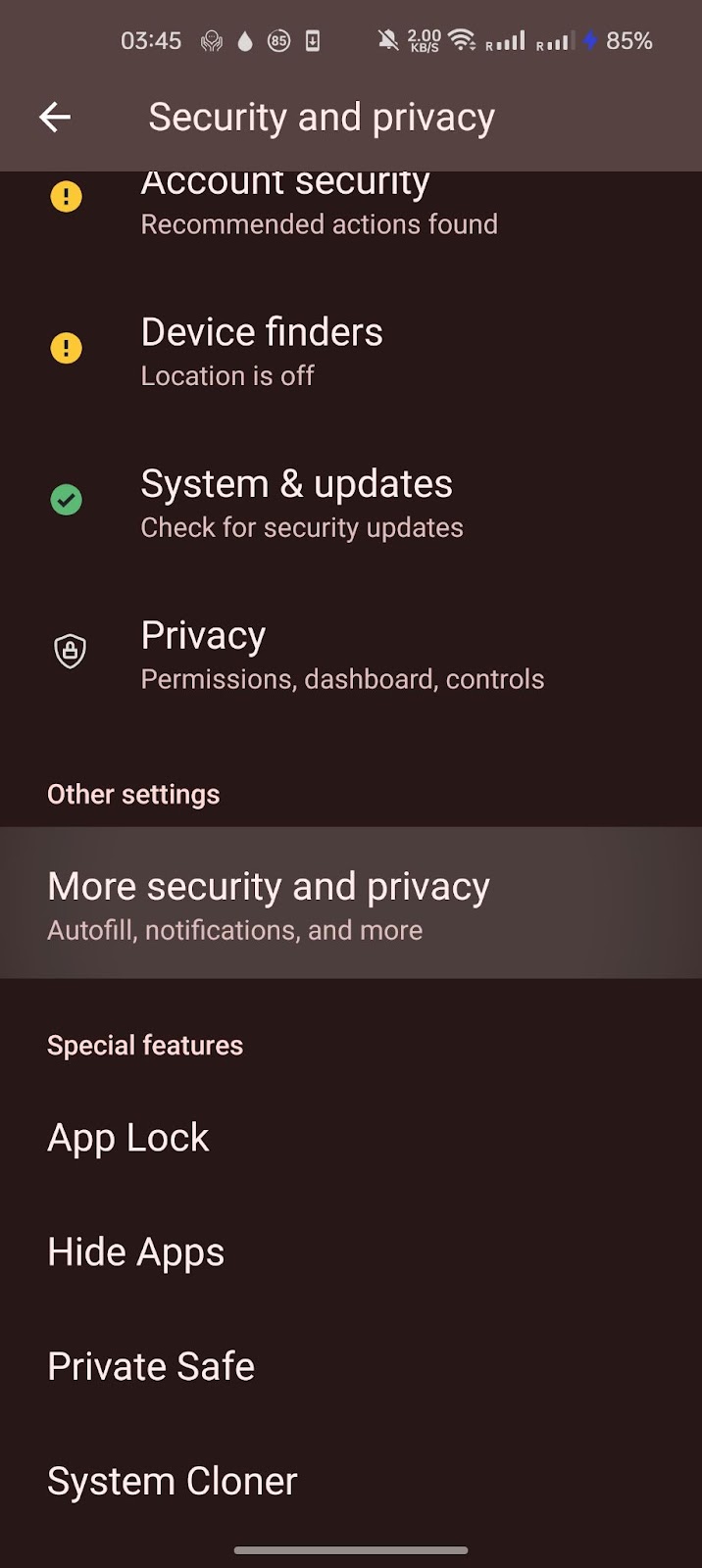
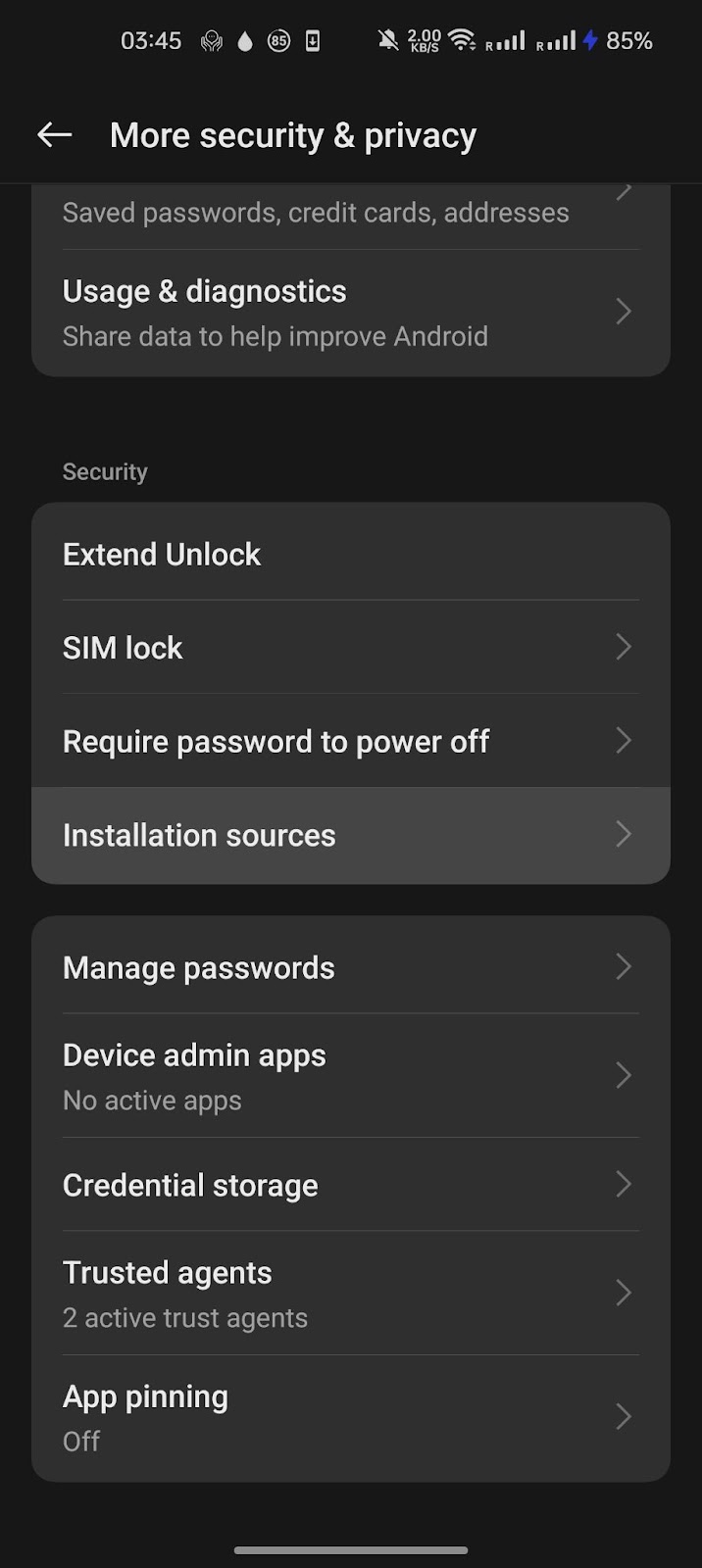
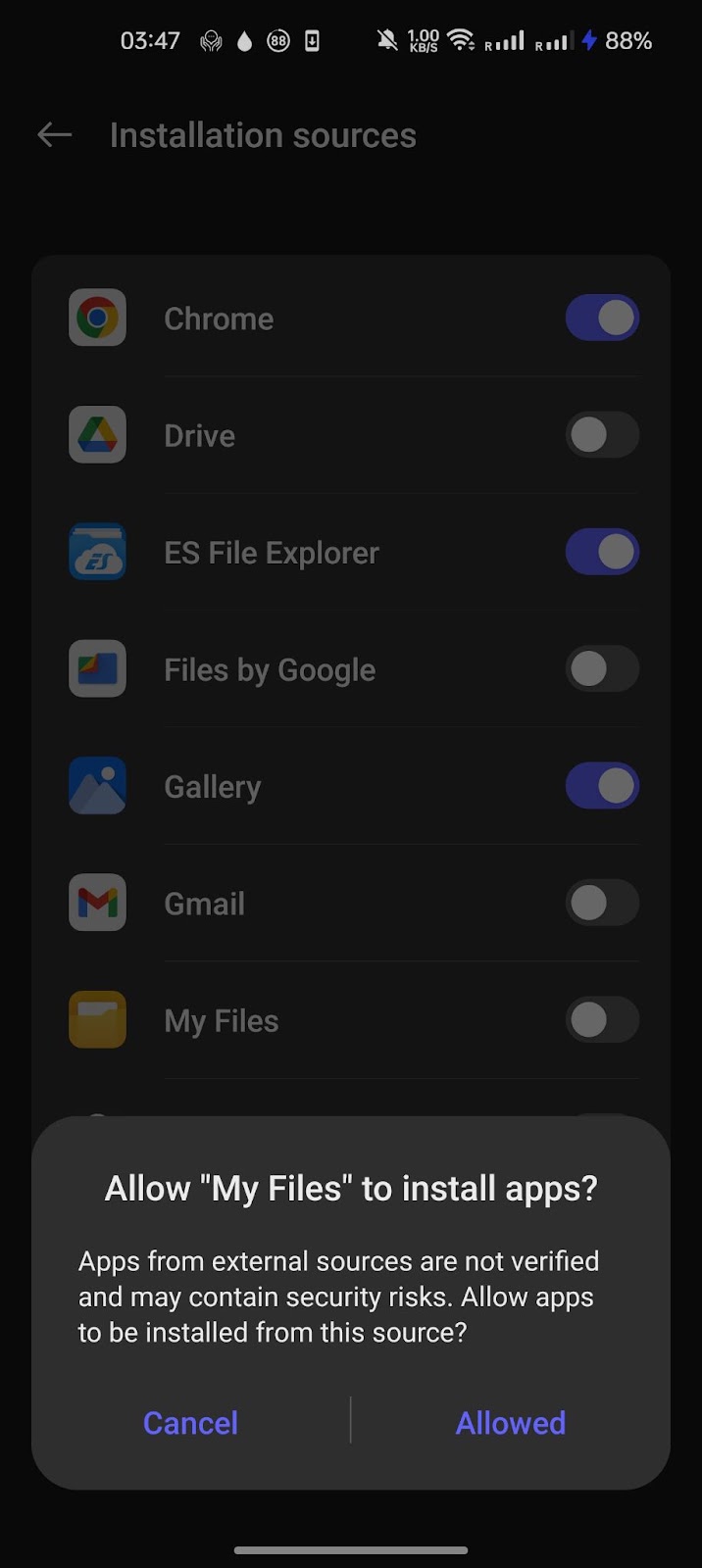
Open Settings > Security and Privacy > Advanced Security and Privacy > Installation Sources.
This may vary from device to device. To make it easier, use the search in Settings: type “sources” or “unknown apps”.
Find the app or browser you want to use to download APK files and enable the option to allow installation from unknown sources.
2. Download the APK file
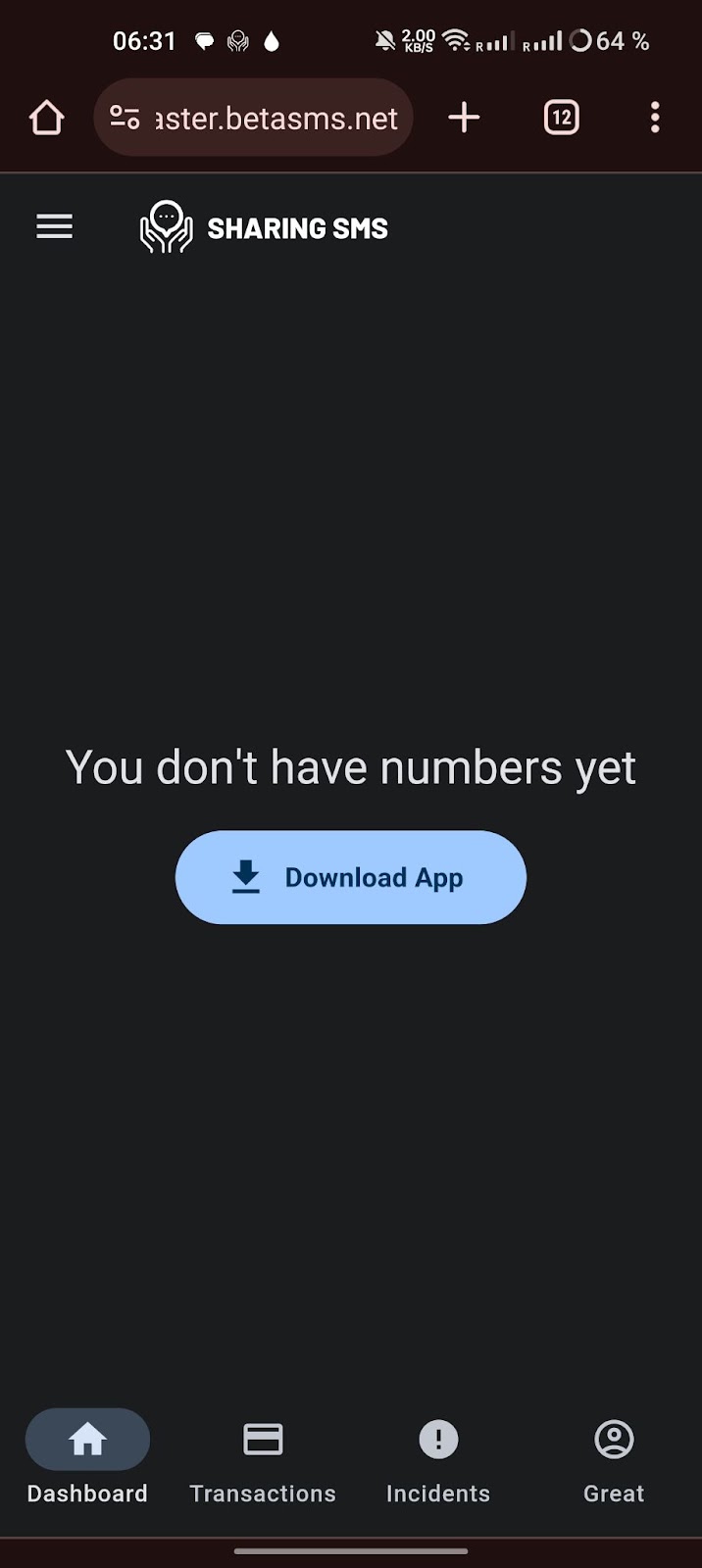
Open a web browser on your Android device and go to sharingsms.com/apk to download the APK file. You can also download it from your Personal Account. Tap the download button to save the APK file to your device.
3. Find the APK file
Once the download is complete, open the file manager app on your Android device and navigate to the folder where the APK file is saved.
4. Start the installation
Tap the APK file to start the installation process.
5. Grant permissions
When prompted, provide the necessary permissions to proceed with the installation.
6. Install the app
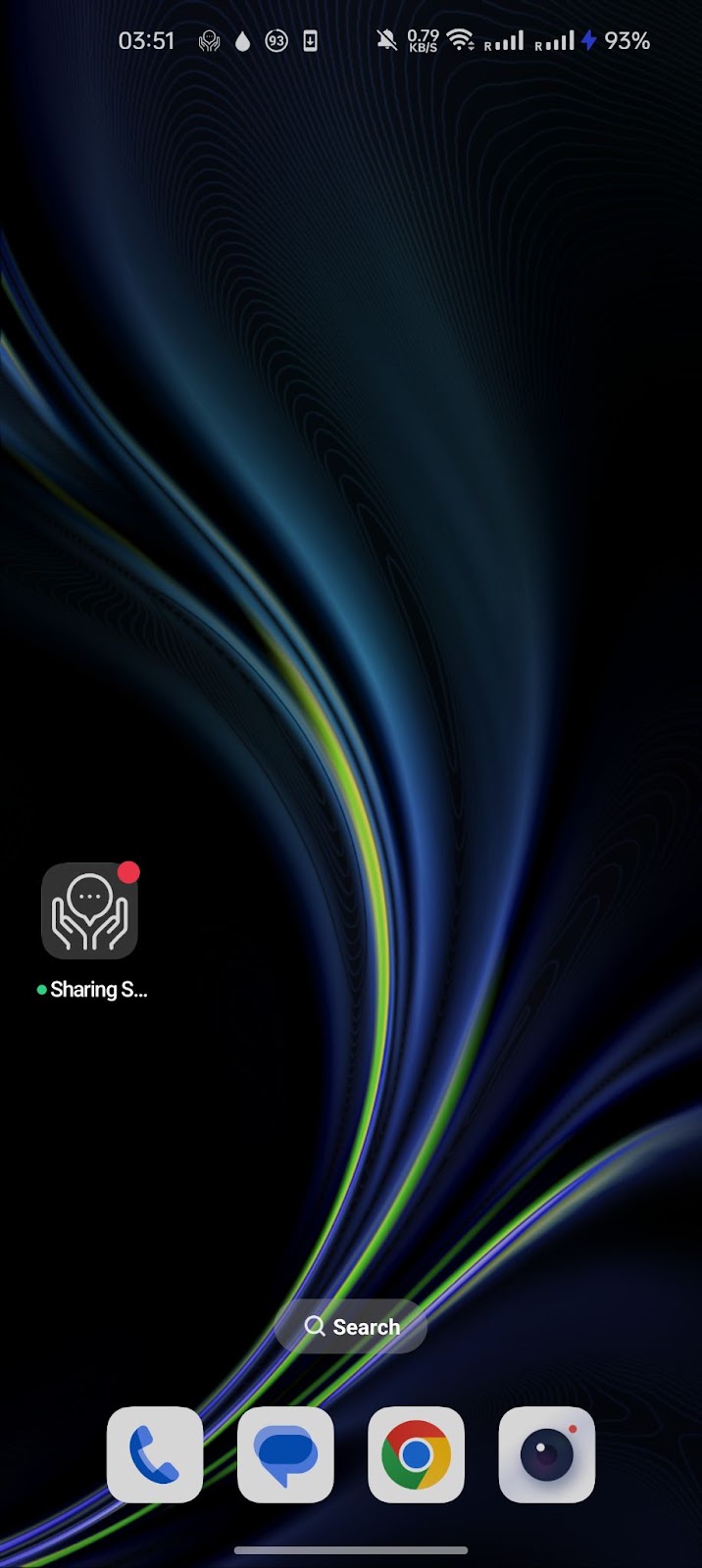
Follow the on-screen instructions to install the application. After the installation is complete, you can find the application in the app drawer or on the Home screen.
7. (Optional) Disable unknown sources
For security reasons, after installing an APK, it is recommended that you go back to your device settings and disable the option that allows installation from unknown sources.
Please note that installing applications from third-party sources may pose a security risk, so it is important to download APK files only from reliable sources.
 English
  Українська
  Français
  Español
  简体中文
简体中文  العربية
  Bahasa Indonesia
  Türkçe
  Italiano
  Tiếng Việt
  Deutsch
  Русский